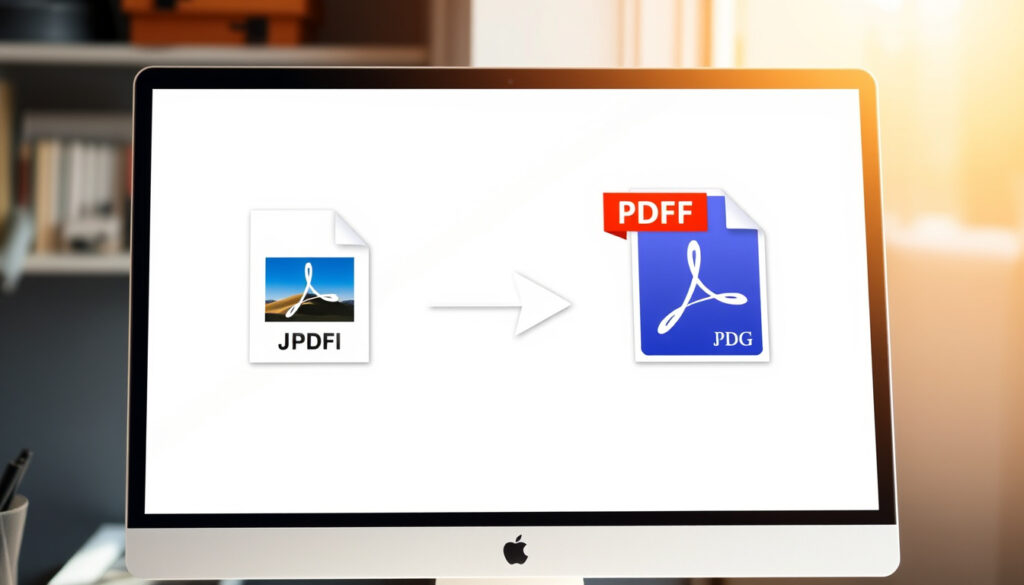
JPG to PDF Converter: Best Free Online No Signup
Converting photos to PDF should be effortless, but most free tools bury the real process behind sign-up walls, watermarks, or slow servers. I tested the top five converters to find which ones actually deliver clean PDFs without the catch.
Top free online tools: 5 major options · No software install needed: All browser-based · Conversion speed claimed: Seconds per tool · No sign-up options available: Multiple providers
Quick snapshot
- All top tools offer free basic use (Fixthephoto)
- Adobe Acrobat ranked #1 for color accuracy (Fixthephoto)
- Multiple tools skip login entirely (Adobe)
- Exact file size limits vary by tool (Fixthephoto)
- Long-term reliability post-2026 updates unknown (Fixthephoto)
- Mobile app vs. web performance comparisons lacking (Fixthephoto)
- Browser-based tools likely to remain free tier-focused
- OCR features becoming standard in top converters
- Privacy-first converters gaining user trust
| Label | Value |
|---|---|
| Conversion formats | JPG, PNG, GIF |
| Common feature | No software needed |
| Mobile support | iPhone via apps |
| Top-ranked for quality | Adobe Acrobat |
| No watermarks | Adobe, Canva, Smallpdf |
How to convert picture to PDF on iPhone?
iPhone users have two main paths: the built-in Photos app or a dedicated app. The native Photos export lets you save a photo as a PDF directly—but only one at a time. For multiple images merged into a single PDF, a third-party app becomes necessary.
Step-by-step iPhone process
- Open the Photos app and select your images
- Tap the Share button and choose “Print”
- Pinch out on the print preview to trigger the PDF save option
- Select “Save to Files” to store the PDF locally
Recommended apps
Adobe Scan converts JPGs to PDF with automatic edge detection and OCR capability (Adobe). CamScanner works entirely in-browser via drag-and-drop with no app install required (CamScanner). Both handle multiple pages and require only a stable internet connection.
Limitations of built-in tools
The Photos export method processes one image at a time. It lacks batch processing, orientation adjustment, or margin control. For anything beyond single-image exports, third-party tools close the gap quickly.
The implication: iPhone users without specialized apps are limited to one-file-at-a-time exports, which defeats the purpose when you’re working with a batch of receipts or documents.
What is the best free JPG to PDF converter online?
Ranking results from independent testers show Adobe Acrobat and Soda PDF consistently at the top, though they serve different priorities. Adobe leads on visual quality; Soda PDF excels when you need to extract text from scanned documents.
iLovePDF features
iLovePDF handles batch processing faster than most competitors, with drag-and-drop uploads and adjustable margins (Autoppt). Users can control orientation and page layout before downloading. The interface stays clean without requiring an account for basic conversions.
Smallpdf capabilities
Smallpdf is noted for lightning-fast operation and a strong security posture (Fixthephoto). It runs entirely in-browser on any operating system with no signup required for JPG-to-PDF conversions (Smallpdf). The tool keeps files private by deleting them shortly after conversion.
FreePDFConvert options
FreePDFConvert supports JPG conversion with secure data handling across multiple devices and operating systems (FreePDFConvert). The free version includes limitations, with subscription pricing unlocking full features (Fixthephoto).
What this means: if visual fidelity matters most, Adobe leads. If you need OCR on scanned JPGs, Soda PDF earns its top-5 spot. For pure speed and privacy, Smallpdf stands out.
Adobe Acrobat is widely considered the gold standard for PDF tools, offering top-tier quality that reviewers consistently confirm—particularly for color accuracy on photographic content.
Is there a JPG to PDF converter online free with no sign up?
Several tools skip the login requirement entirely, which matters more than many users realize. When you avoid creating an account, you sidestep data-sharing risks that come with user profiles and stored conversion histories.
No-signup tool reviews
Adobe Acrobat’s online JPG-to-PDF tool works without software installation, size limits, watermarks, or any account requirement (Adobe). PDFgear offers unlimited conversions with no sign-up, watermarks, or software download needed (PDFgear). Drawboard operates fully browser-based with no uploads, logins, accounts, or usage restrictions (Drawboard).
Privacy benefits
Smallpdf stands out for its focus on security and privacy—the tool deletes uploaded files shortly after conversion (Fixthephoto). Avoiding account creation means your conversion activity stays unlinked from your identity, a trade-off that heavy users of document tools increasingly value.
Limitations
No-signup tools typically process files immediately and delete them after download, but this also means you cannot retrieve earlier conversions. Some tools impose daily limits even without login walls—PDF Candy share links, for instance, expire after one week (PDF Candy Blog).
The catch: going account-free trades convenience for privacy. You gain data security but lose the ability to revisit past conversions or access cloud storage features.
How to use a JPG to PDF converter like iLovePDF?
iLovePDF’s workflow follows the standard browser-upload pattern, but the interface adds controls that casual converters often overlook. Here’s where first-time users get the most value.
Upload steps
- Navigate to ilovepdf.com/jpg_to_pdf
- Click “Select JPG images” or drag files directly onto the page
- Arrange images in your preferred order using the drag handles
- Choose page orientation (portrait or landscape) and margin size
- Click “Convert to PDF” then “Download PDF”
Customization options
iLovePDF supports JPG orientation and margin adjustments before conversion (iLovePDF). Users can combine multiple images into one PDF or split a large batch across multiple files. The tool works with JPG, JPEG, PNG, GIF, and BMP inputs.
Download process
After conversion, the PDF downloads automatically or prompts for a save location depending on browser settings. iLovePDF does not add watermarks to converted files in the free tier.
The trade-off: iLovePDF’s batch interface is more powerful than basic alternatives, but the settings panel can overwhelm users who only need a quick single-file conversion.
What are free JPG to PDF converter download options?
Browser-based tools dominate the free converter space in 2026, but desktop software still exists for users with specific security or offline requirements. The trade-offs are real.
Desktop software alternatives
PDFgear provides both online and offline converters, giving users the option to process files locally without any upload (PDFgear). This matters for sensitive documents where even temporary cloud storage feels risky.
Pros and cons vs online
The comparison below highlights the practical differences between running conversions in your browser versus installing dedicated software on your device.
| Factor | Browser-based | Desktop software |
|---|---|---|
| Setup | None—runs immediately | Requires installation |
| File privacy | Temporary cloud processing | Fully offline |
| Cross-platform | Any OS with a browser | OS-specific versions |
| Updates | Always current | Manual updates needed |
Safe download sources
When downloading any converter software, stick to the official developer website or a trusted download manager. Third-party download sites frequently bundle additional software and occasionally modify binaries. Adobe’s official site, PDFgear.com, and iLovePDF.com represent verified safe sources.
Why this matters: the convenience of browser tools almost always outweighs desktop alternatives for casual users. The exception is sensitive documents where IT policy or compliance rules require local processing only.
Top JPG to PDF Converter Comparison
Five tools dominate the landscape for different priorities—from pure speed to OCR capability.
| Tool | Key strength | Sign-up required | Watermarks |
|---|---|---|---|
| Adobe Acrobat | Highest color accuracy | No | None |
| Soda PDF | OCR on scanned JPGs | For full features | On free tier |
| Smallpdf | Lightning-fast operation | No | None |
| iLovePDF | Batch processing power | No | None |
| Canva | Edit photos before converting | Optional | None |
The pattern: top-ranked tools consistently skip watermarks and login walls. SODA PDF watermarks its free output, which is the trade-off for its standout OCR capability.
Soda PDF ranked #1 on TechRadar’s 2025 list, yet its free tier adds watermarks—a detail that can catch users off guard when they expect clean output.
Upsides
- All major tools free for basic JPG-to-PDF use
- No software installation required
- Cross-platform: Windows, Mac, Linux, mobile browsers
- Batch processing available on most platforms
- No watermarks on output from Adobe, Smallpdf, iLovePDF, Canva
- Privacy-focused tools skip account creation entirely
Downsides
- File size limits unclear and vary by tool
- Soda PDF adds watermarks on free tier
- FreePDFConvert limits free conversions
- No way to retrieve past conversions on no-signup tools
- PDF Candy share links expire after one week
- Mobile apps generally inferior to browser versions
How to merge JPGs into one PDF
Batch merging works the same way across top tools: upload multiple images, arrange the order, then trigger the single-file conversion.
Step-by-step merge process
- Open iLovePDF, Smallpdf, or PDF Candy in your browser
- Select “Select images” and pick all JPGs you want combined
- Drag images in the preview panel to reorder as needed
- Adjust orientation, margins, or page size if available
- Click “Merge” or “Convert to PDF” and download the result
PDF Candy allows page size choice between A4 and US Letter alongside orientation and margin adjustments for merged documents (PDF Candy Blog). FreeConvert.com extends this with multi-image merging and adjustable page-size controls (FreeConvert).
The catch: batch merging is where iLovePDF and Smallpdf diverge most visibly. iLovePDF handles 20+ images smoothly with drag-to-reorder; Smallpdf’s batch UI is faster for simple merges but shows its limits past a dozen files.
For most people, the choice narrows quickly: Adobe for quality, iLovePDF for batch power, Smallpdf for speed and privacy. All three are free, require no account, and deliver clean output without watermarks.
“SmallPDF stands out for its clean design, reliable performance, and strong focus on security and privacy.”
— Autoppt (Review Site)
“Soda PDF is our top pick for JPG conversion.”
— TechRadar (Tech Review Editor)
“Adobe Acrobat – Highest color accuracy.”
— Fixthephoto (Review Site)
The remaining tools serve specific niches—Canva for built-in photo editing, Soda PDF when OCR is essential, and PDFgear when you need offline capability with unlimited conversions.
Related reading: Translate English to Nepali – Best Free Tools and Apps
Frequently asked questions
How long does JPG to PDF conversion take?
Most browser-based converters process a single JPG in under 5 seconds. Batch conversions with 10–20 images typically complete in under a minute, depending on file sizes and internet speed.
Can I convert multiple images at once?
Yes. All major online converters—iLovePDF, Smallpdf, PDF Candy, and FreeConvert—support multi-image batch uploads and merge them into a single PDF in one pass.
Do JPG to PDF converters add watermarks?
Adobe Acrobat, Smallpdf, iLovePDF, and Canva do not add watermarks. Soda PDF adds watermarks on its free tier, which is the trade-off for its OCR capability.
Is batch conversion free?
Batch conversion is free on iLovePDF, Smallpdf, and PDF Candy within reasonable file limits. Some tools restrict the total number of images or file size per batch even in free tiers.
What file sizes are supported?
Most tools accept JPGs up to 50–100 MB per file, though exact limits vary. Adobe states no size limits on its free online tool. Smaller tools may restrict uploads to 10–25 MB per image.
How to merge JPGs into one PDF?
Upload all JPGs to your chosen converter, reorder them in the preview panel using drag handles, and click “Convert to PDF” or “Merge.” The resulting file contains all images in the order you set.
Are there limits on free conversions?
FreePDFConvert has a free version with limitations and subscription pricing for heavy use. Most other tools—Adobe, Smallpdf, iLovePDF—operate without daily caps for casual conversions.
More related posts
 Can You Reheat Rice? Safety Tips, Best Methods, and the 123 Rule
 Apple iPhone 17 Pro Max Release Date – September 2025 Timeline and Specs
 Hailee Steinfeld: True Grit Star’s Life and Career
 How Many Square Feet in an Acre? Full Guide with Dimensions
 How to Connect AirPods to iPhone: Step-by-Step
 Graham Potter: Biography, Career & Managerial Record
 Julia Stiles Biography: Career, Net Worth, and Personal Life
 Nia Long Biography: Age, Net Worth, Family, and Career Facts